
Building your first Custom Block
How to create custom blocks
This guide walks you through creating your first Custom Block in the Superfans Low Code Builder.
You’ll learn how to set up a block, structure HTML, style it with CSS, add interactivity with JavaScript, and preview it live in your app.
By the end of this guide, you’ll have a working, fully customizable app section ready to publish.
Prerequisites
Before you start, make sure you have:
- A Superfans account with access to the Low Code Builder.
- Familiarity with HTML, CSS, and JavaScript.
- Optional: Understanding of Superfans SDK methods for dynamic data.
Tip: You don’t need to be a full-stack developer, but basic front-end knowledge will help.
Create My 1st Block
Access the Builder
- Navigate to the Custom Blocks section of the dashboard from the Settings menu on the sidebar.
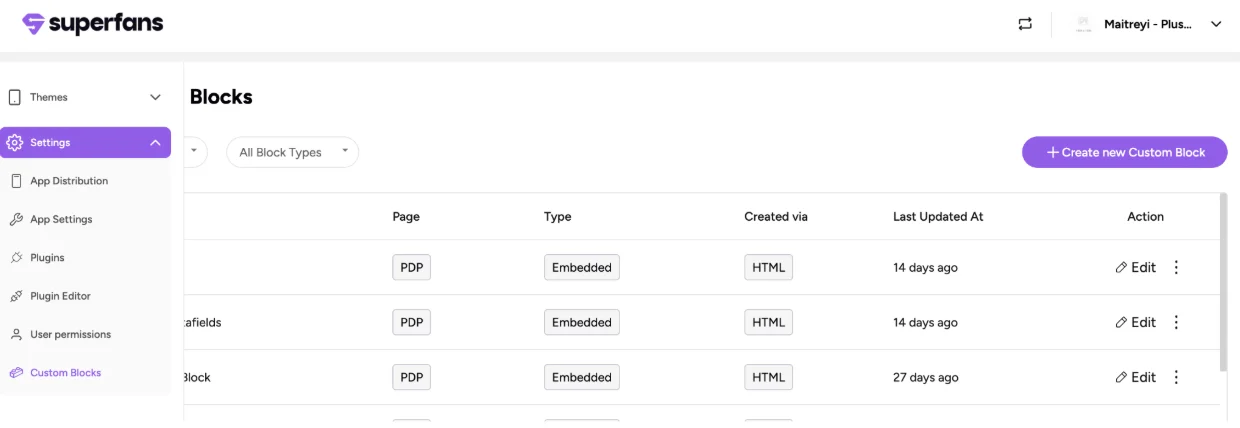
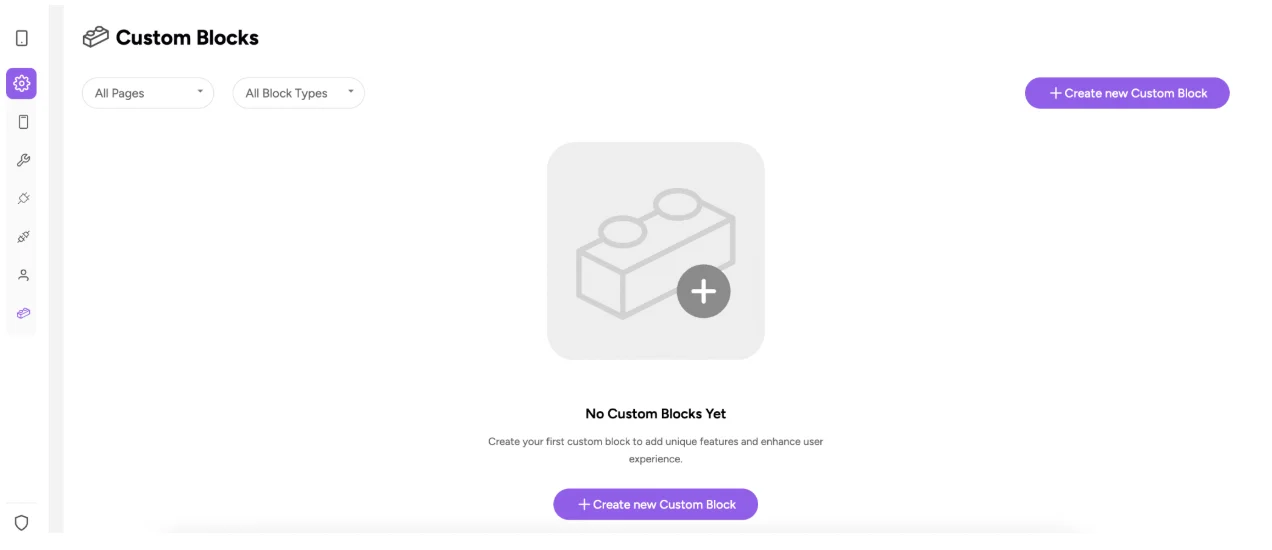
- Click on Create new Custom Block
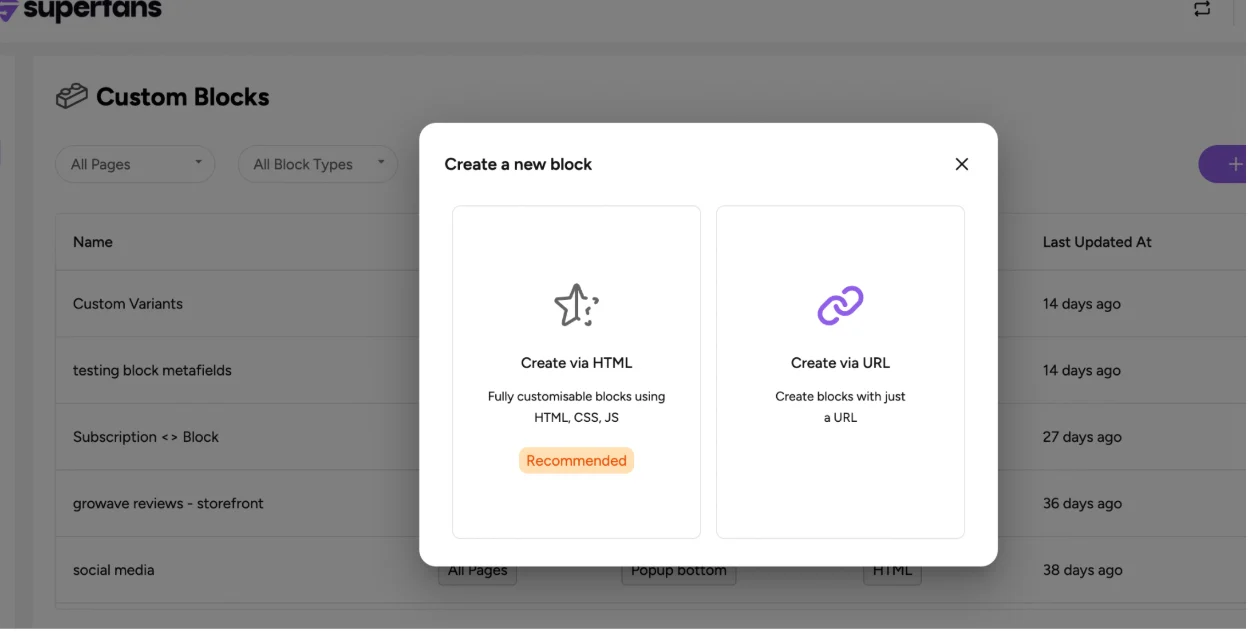
Choose create via HTML.
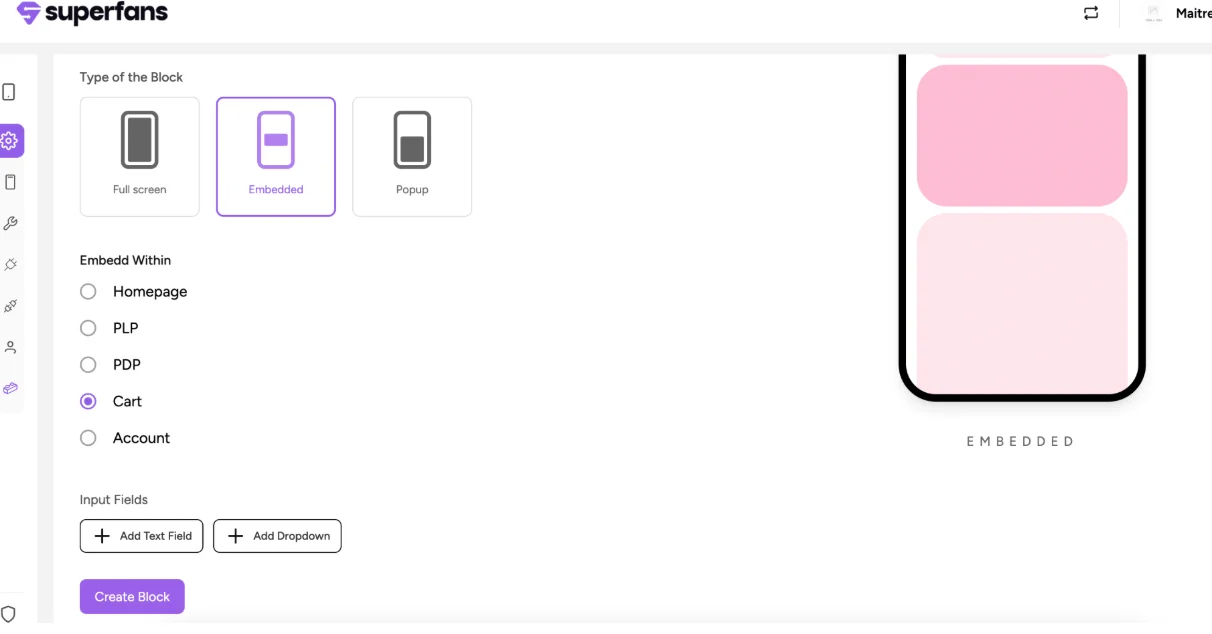
Choose Block Type
- Provide the following:
- Block name
- Block type
- Block placement
- Click on Create Block.
Your block is now created. You can customize it however you want and add it to the respective page.
Structure Your HTML
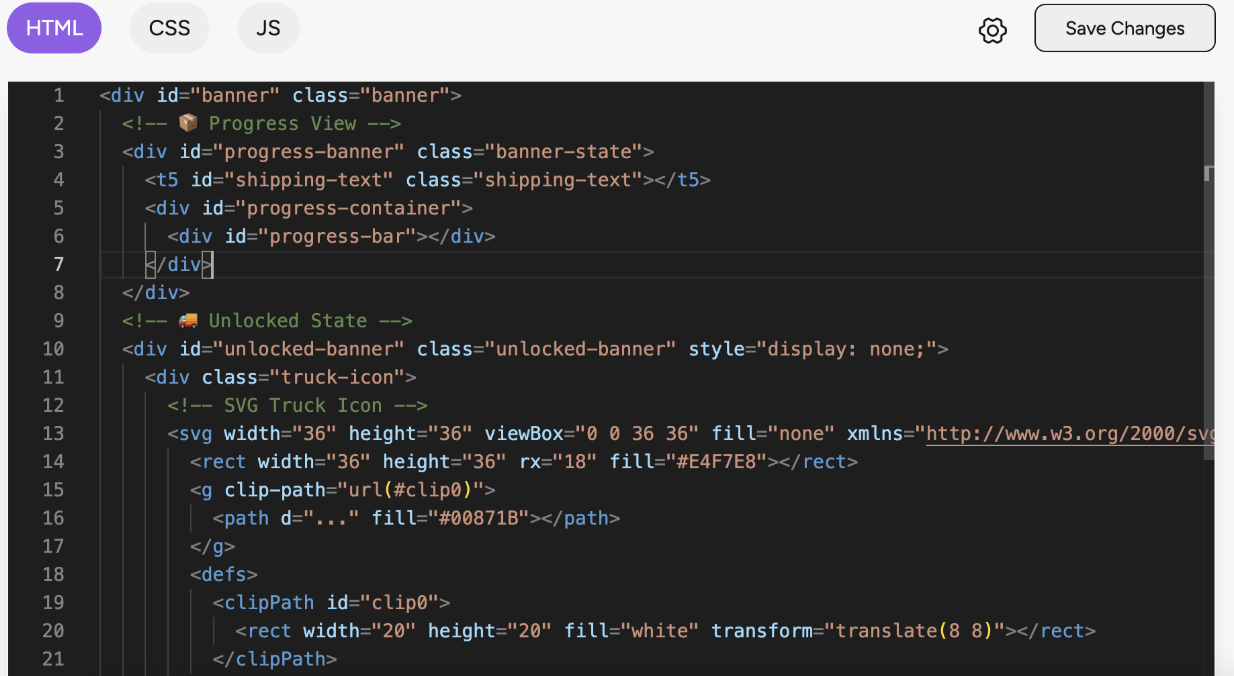
Custom Blocks rely on HTML for structure.
Use:
- Semantic elements where possible (
<section>,<div>,<ul>,<li>). - Class names for CSS styling.
Style with CSS
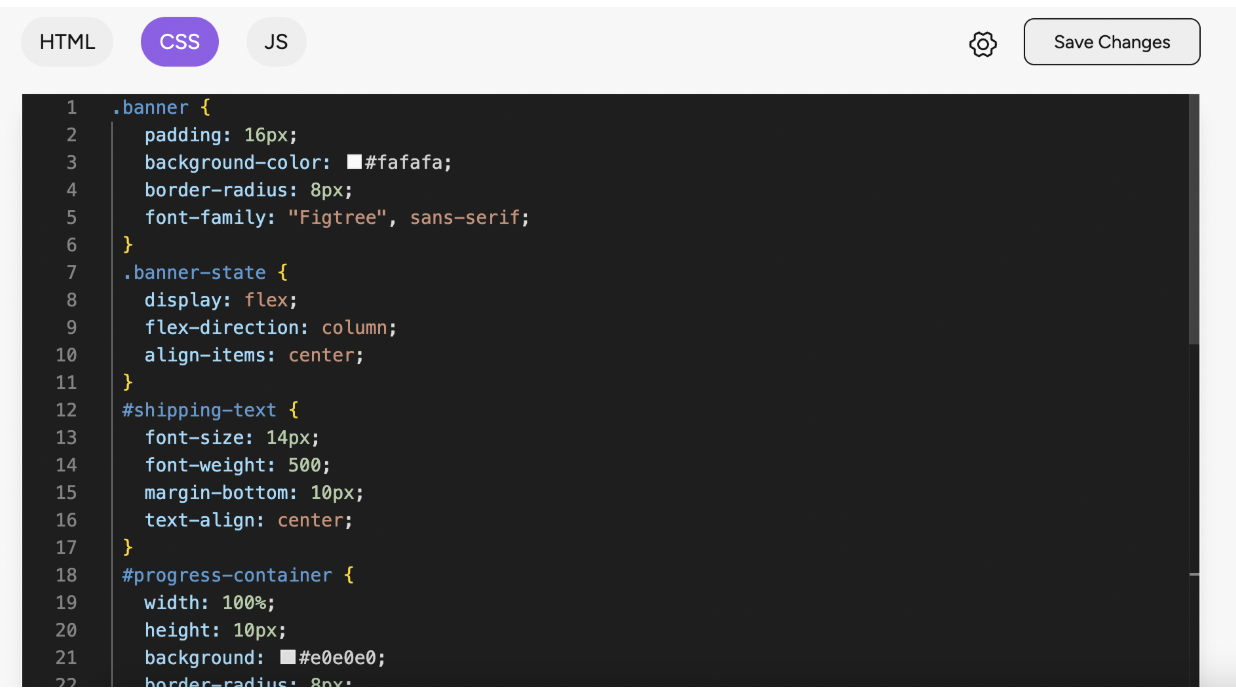
Use CSS to control the appearance of your block. You can write:
- Inline styles
- Scoped CSS in the editor
- External styles (if using SDK imports)
Add Interactivity with JavaScript
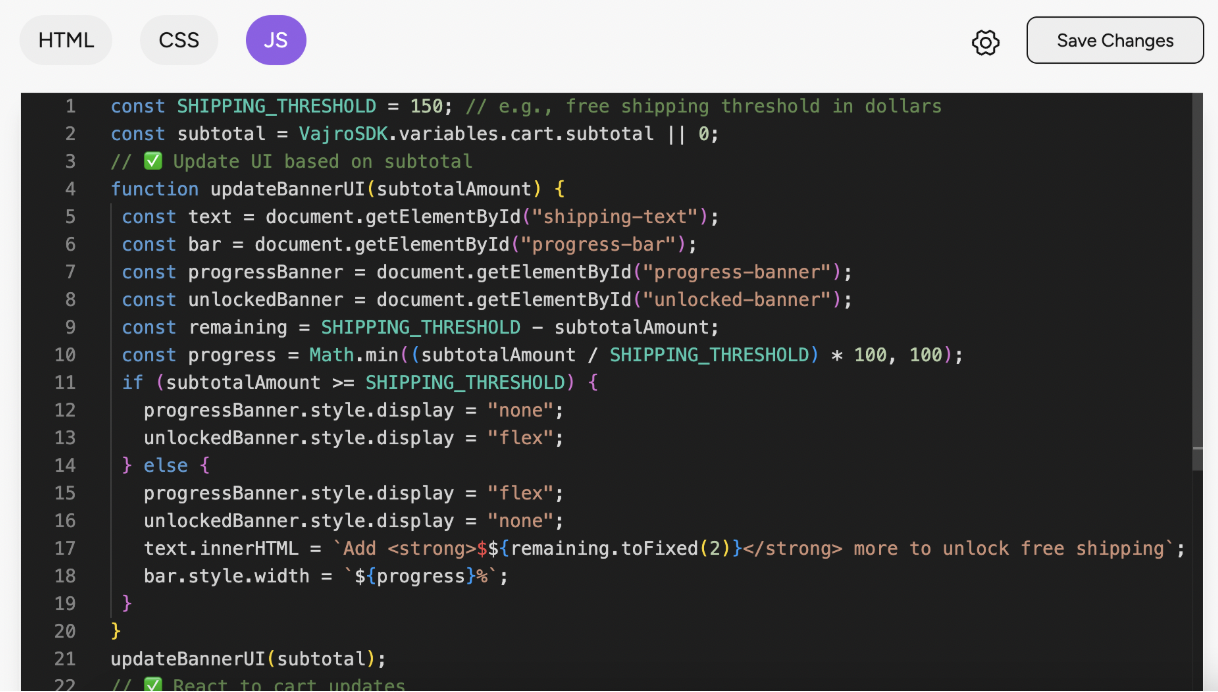
JavaScript makes your block dynamic and interactive.
Examples include:
- Fetching data from your store or APIs
- Handling user interactions (clicks, swipes)
Click Save Changes after adding JavaScript.
Including External Scripts in Head tag
We have created an option to include external scripts in "head" tag as it is good practice to be followed which allows early loading and reduce the dependency.
Steps to add Scripts in the head tag
Steps :
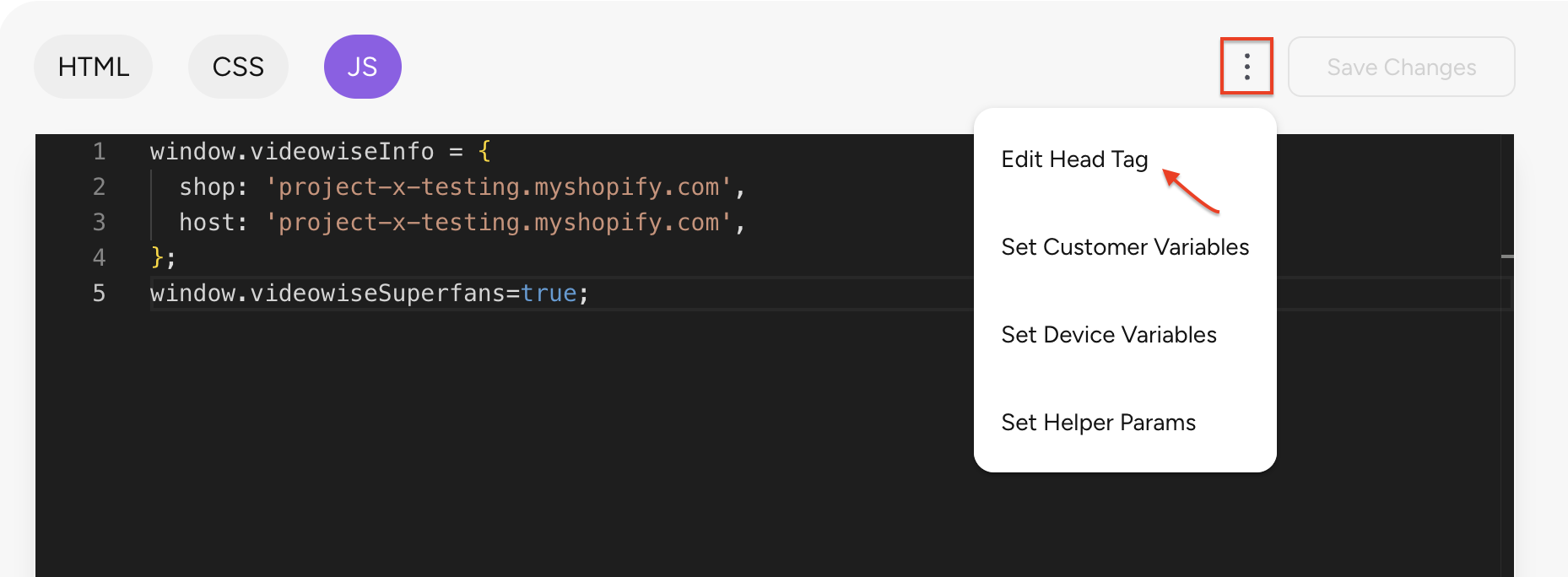
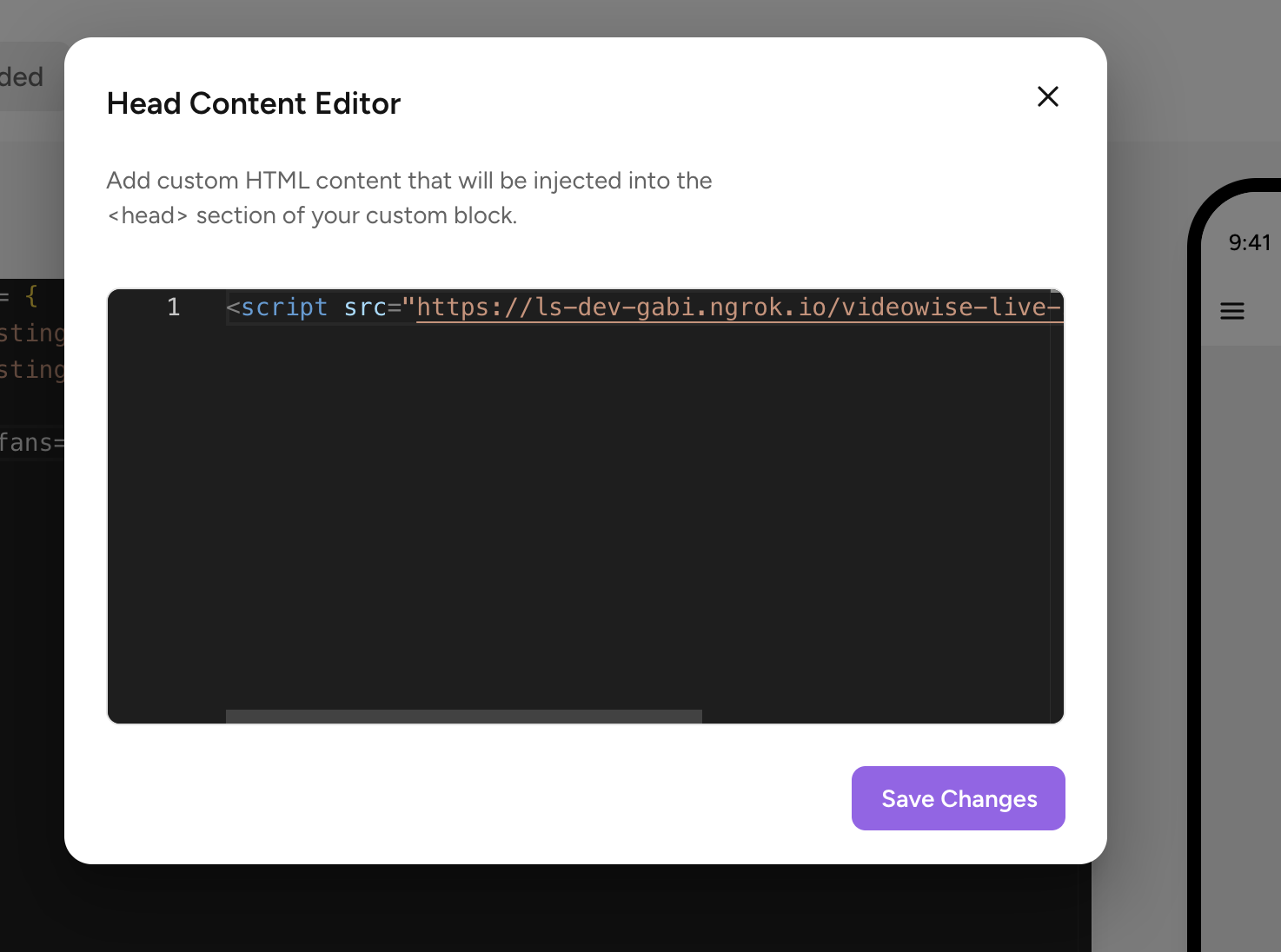
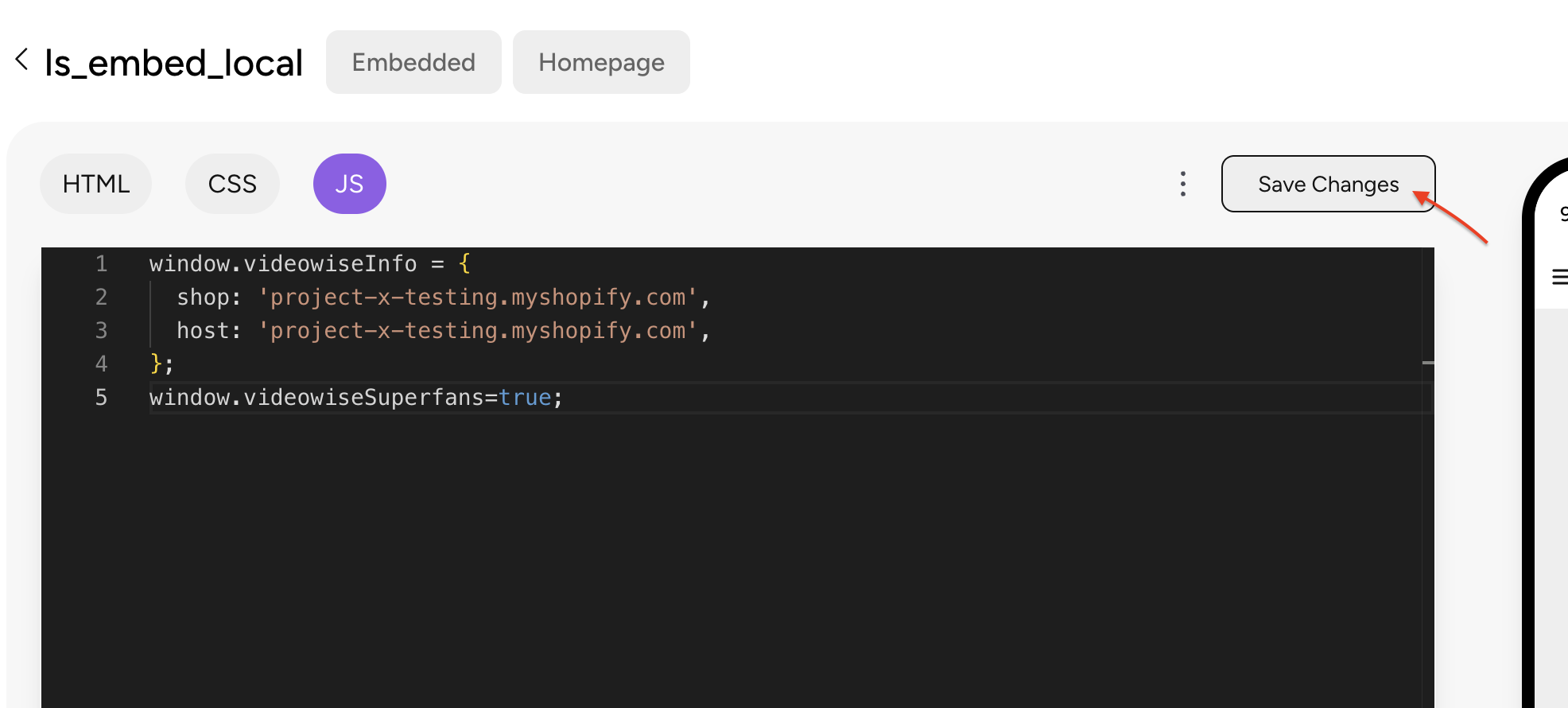
- In the Editor, click on the 3 dots left to "Save Changes" CTA and click on Edit Head tag.
-
Load the required scripts and click on Save Changes CTA.
-
Click on Save Changes CTA to have the scripts applied for the entire block.
Connect Dynamic Data (Optional)
For data-driven blocks:
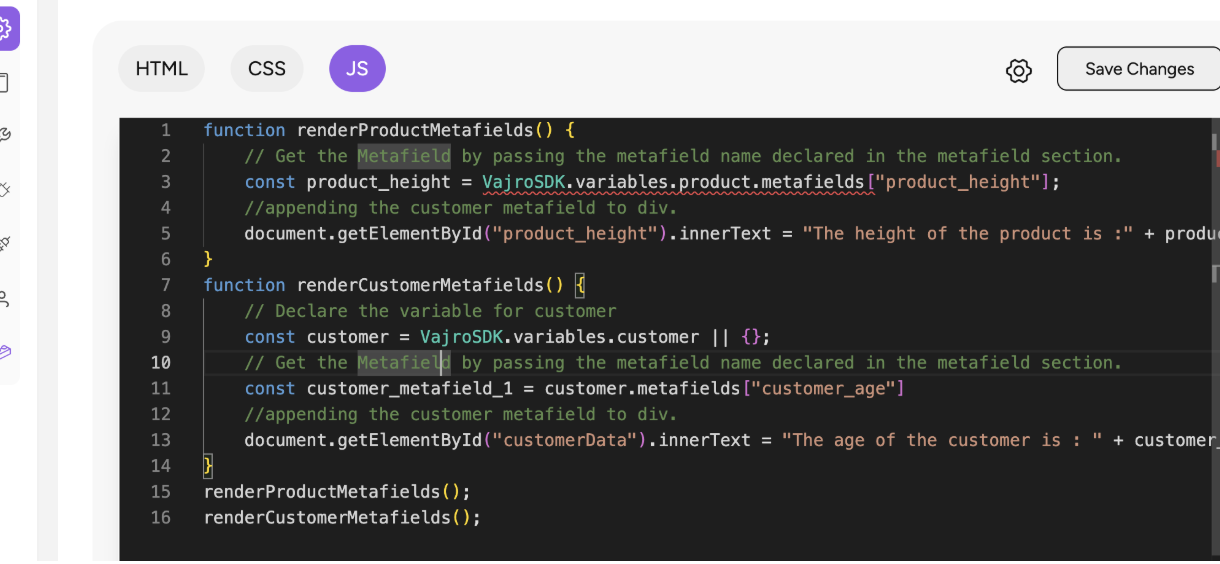
- Use Superfans SDK methods to fetch products, collections, metafields, or user info.
- Replace static HTML placeholders with dynamic content.
Place the Block on the App
Based on the block you created, add it to the respective page for it to appear on the app.
Steps:
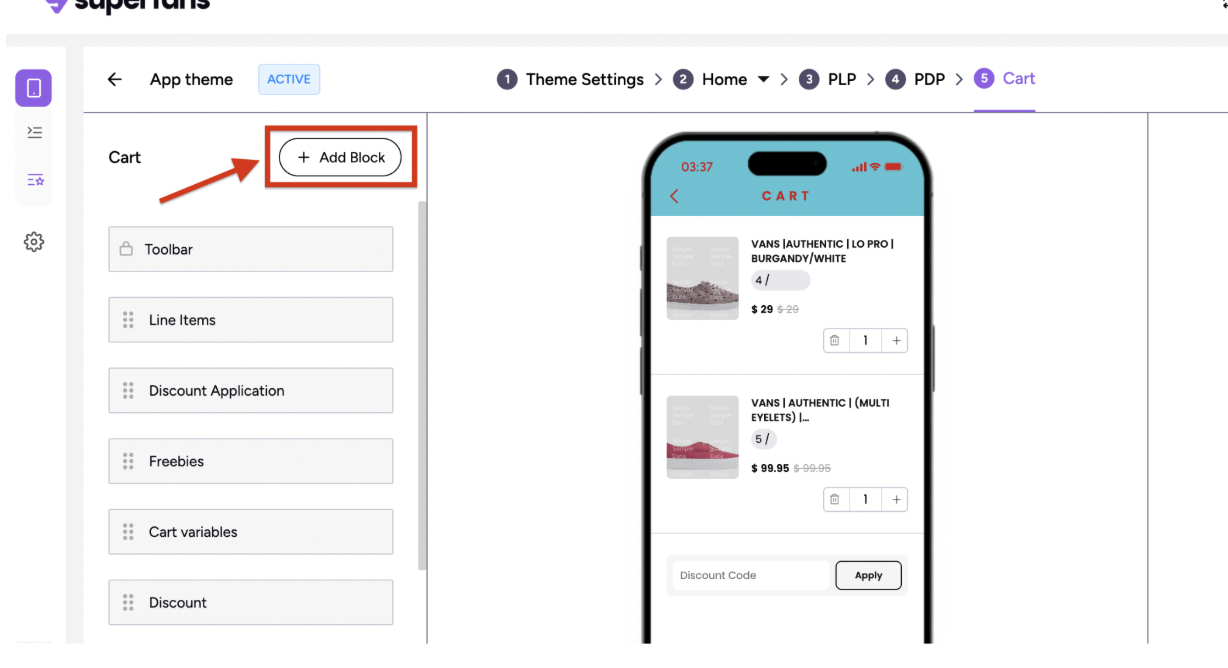
- Navigate to the page in the theme editor.
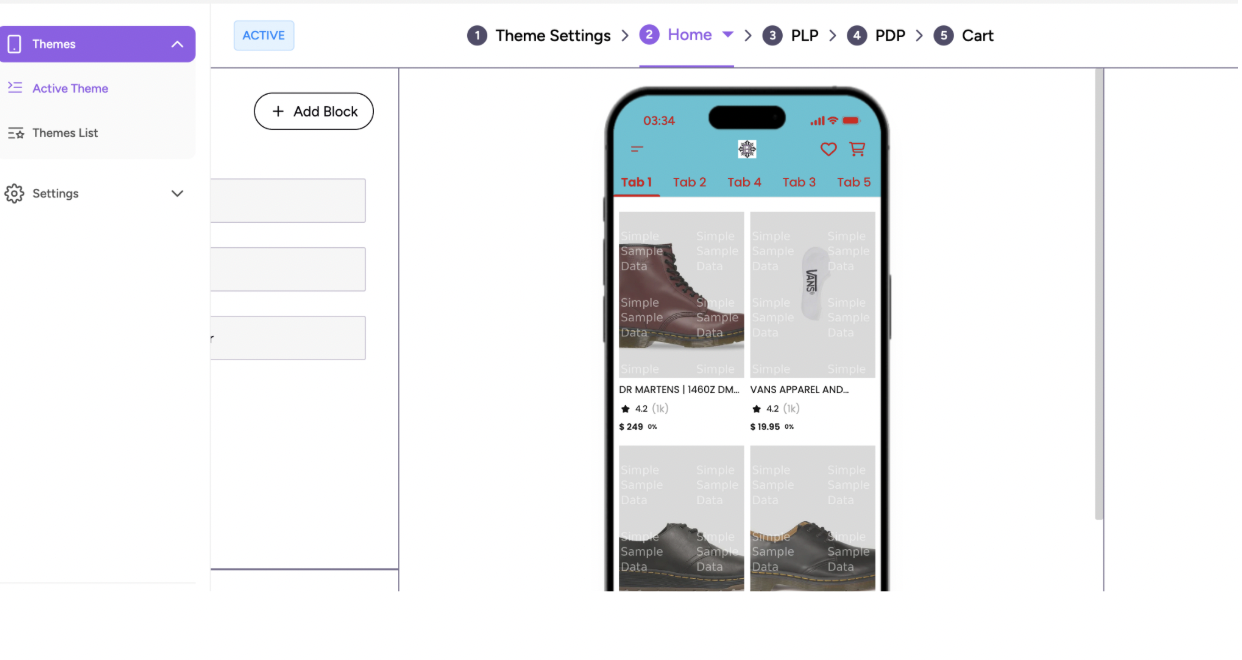
- Click the Add Block button.
-
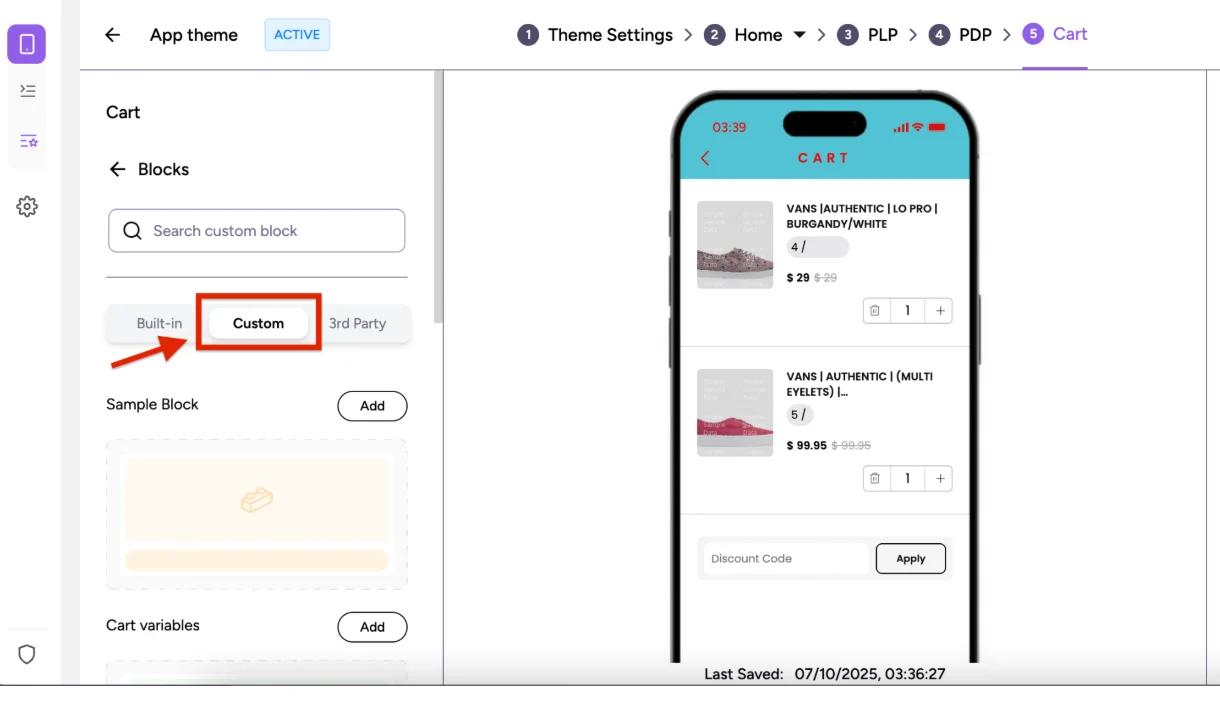
Select Custom as the block type.
-
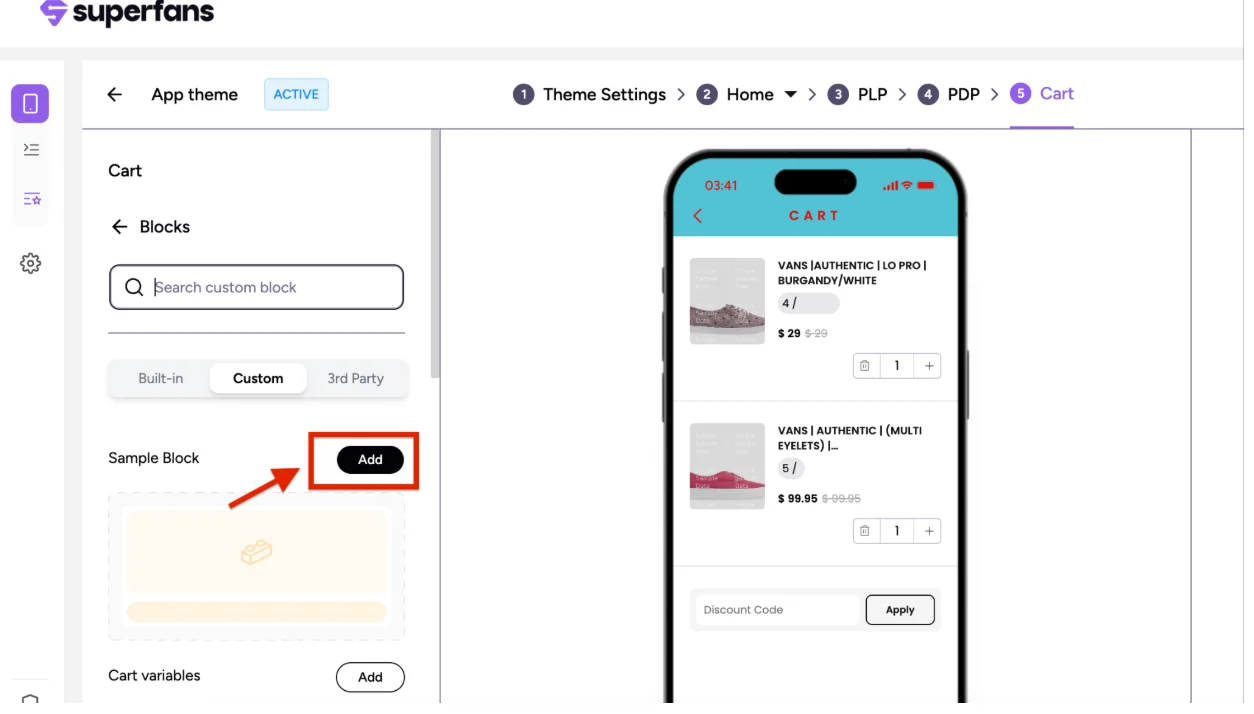
Scroll or search for your block → click Add.
-
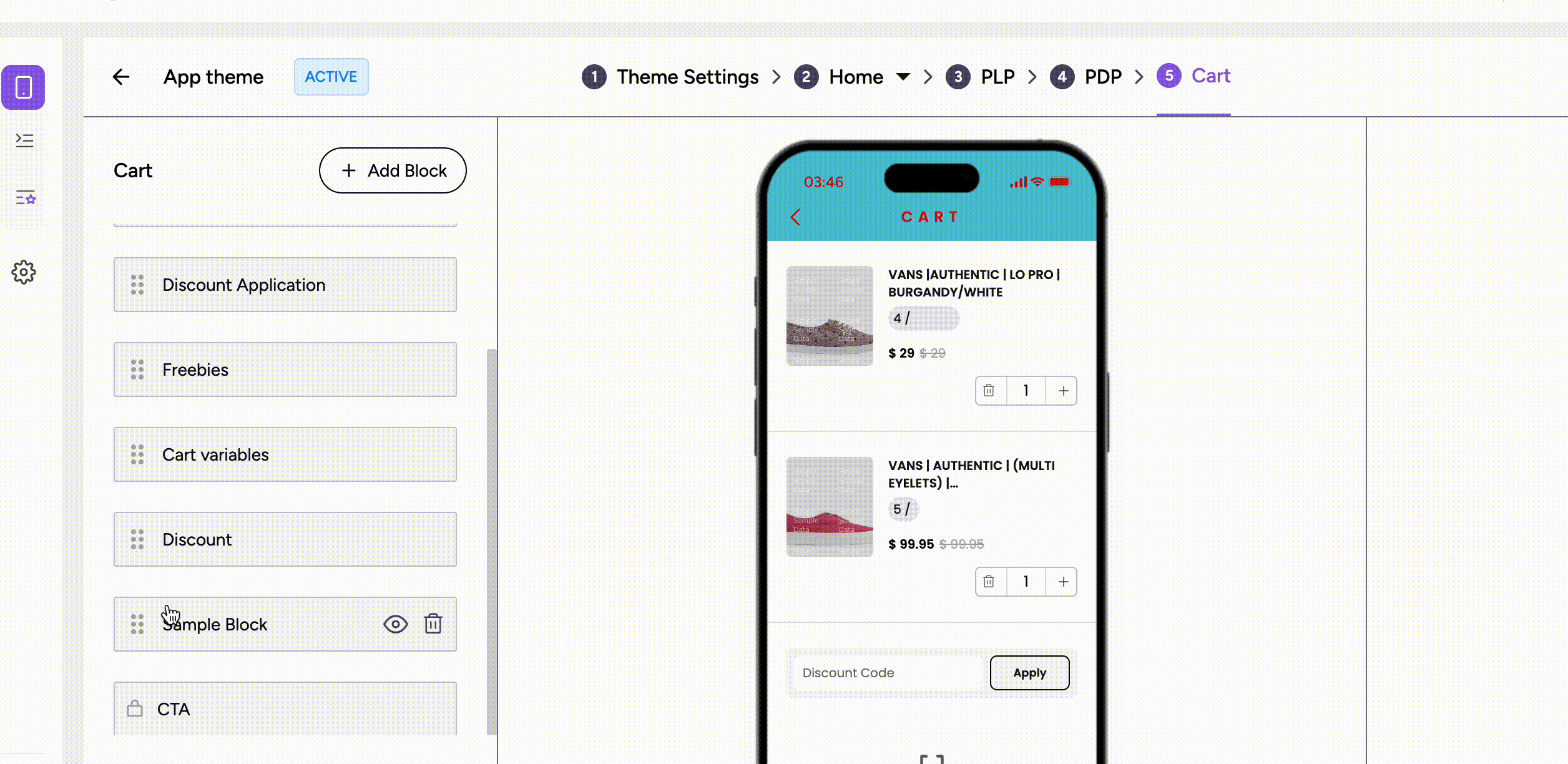
Drag to reposition the block as needed.
Preview on the App
- Open the Admin app or Live app to view the block.
- Test interactions and responsiveness across devices.
- Make edits in real time and see changes immediately.
Best Practices
1. Avoid SVGs (Inline or Complex Ones)
Inline SVGs with many <path> or <g> elements can bloat the DOM and slow rendering.
Alternatives:
- Use optimized PNG/WebP icons.
- If SVG is required, compress with tools.
2. Avoid Huge Images (Optimize for Device Size)
Large images impact loading speed and memory usage.
Tips:
- Always compress images.
- Prefer WebP/AVIF over PNG/JPG.
- Use images sized for the container (not 2000px for a 200px space).
3. Avoid Auto-Scrolling Images
Auto-slide carousels feel non-native and consume CPU/battery.
Alternative:
Prefer manual swipe gestures.
4. Avoid Unnecessary Transitions & Animations
Heavy transitions or box-shadow animations can cause frame drops.
Better approach:
- Keep animations subtle and under 300ms.
- Animate
opacityandtransform(GPU-friendly).
Managing Custom Blocks
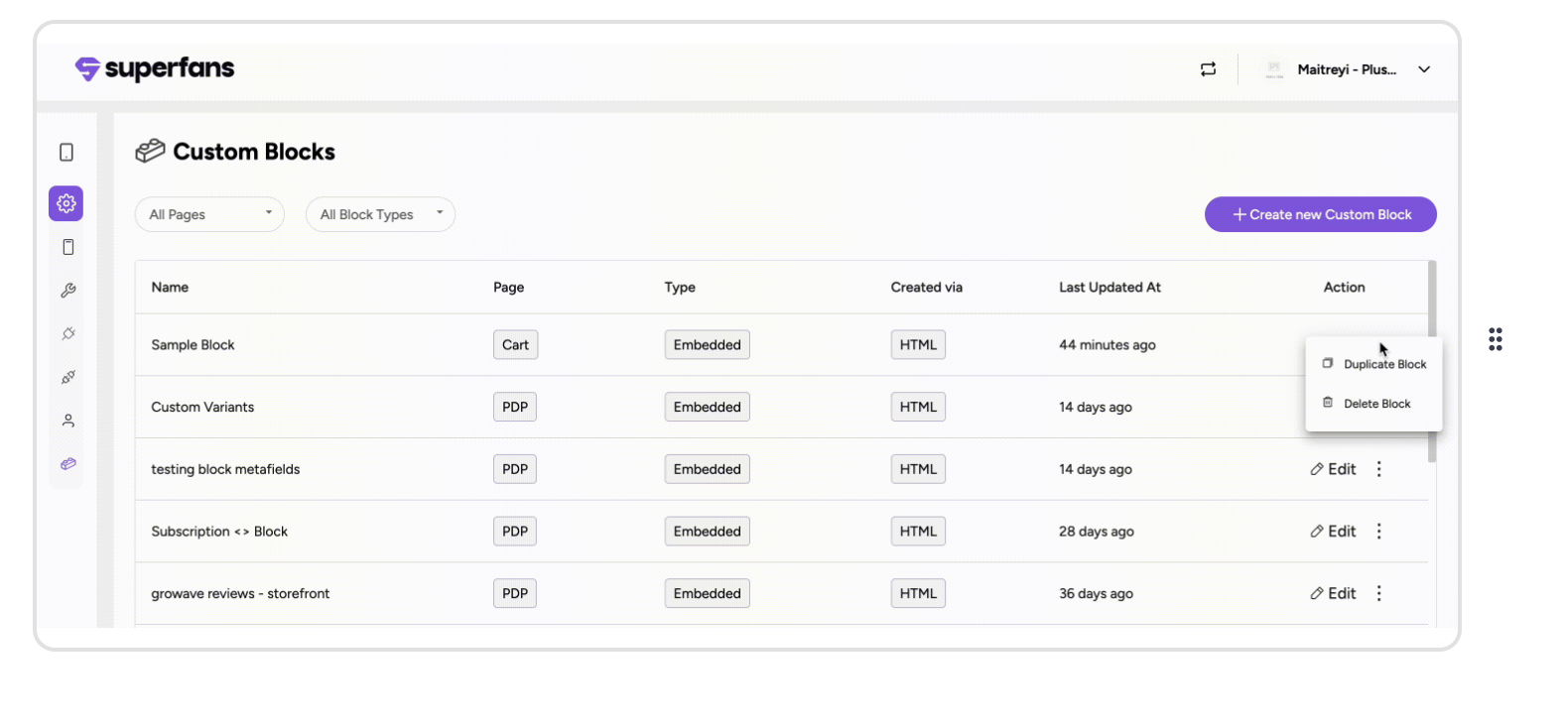
Superfans allows you to edit, duplicate, and delete custom blocks for maximum control and flexibility.
Editing a Block
Editing a block lets you modify HTML, CSS, JS, or configuration.
Steps:
-
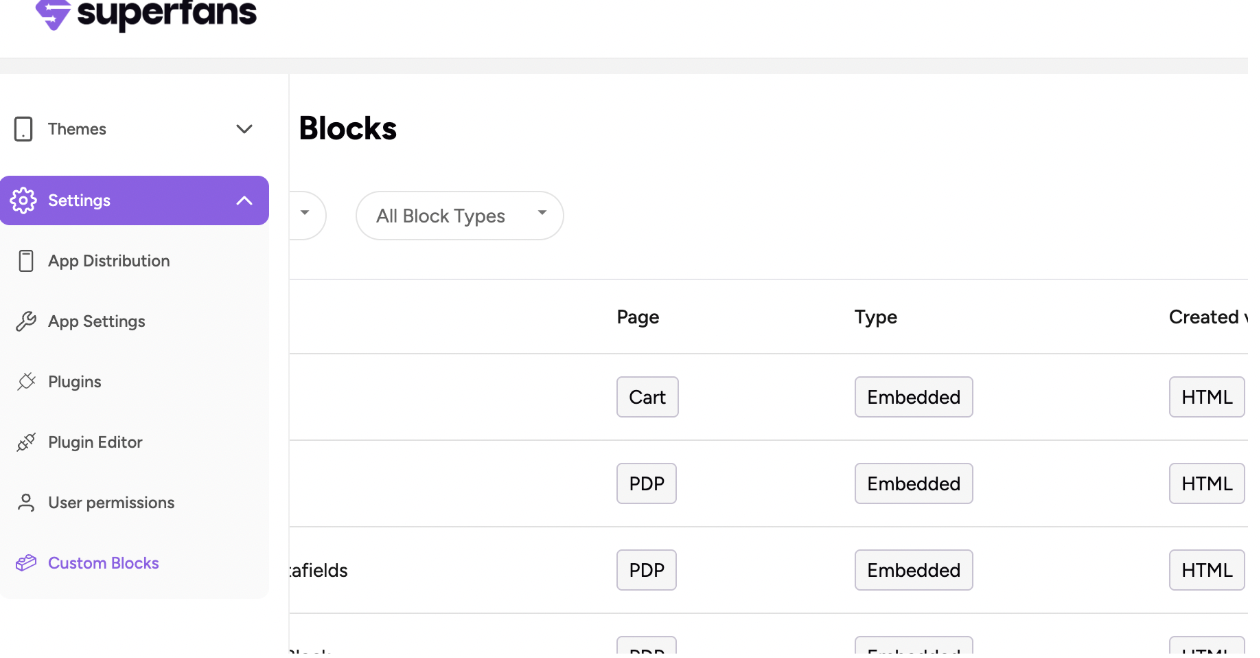
Go to the Blocks section from the Settings menu.
-
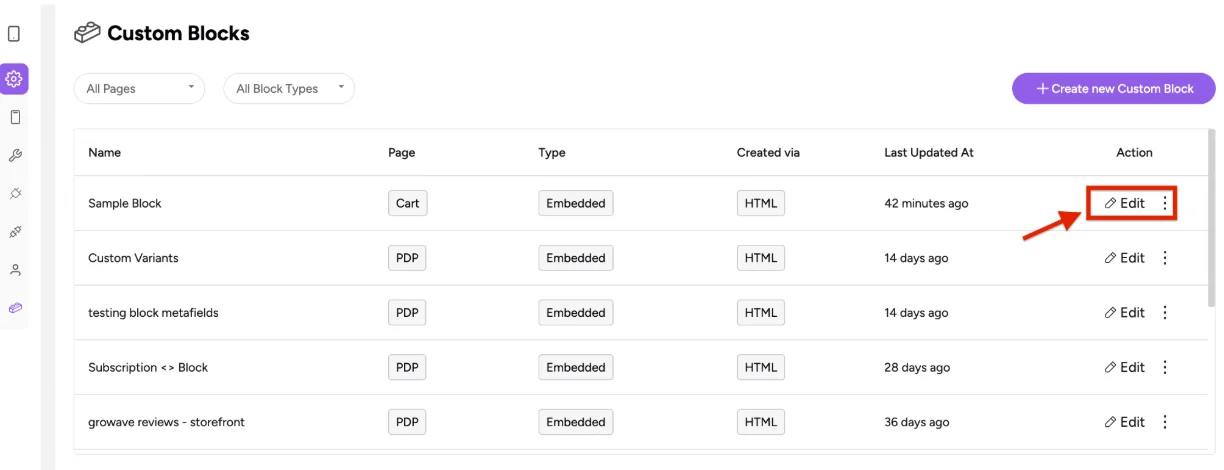
Click Edit on the block you want to modify.
-
Make the necessary changes and save them. Changes reflect instantly on the app.
Deleting a Block
Deleting a block permanently removes it from your app.
Steps:
-
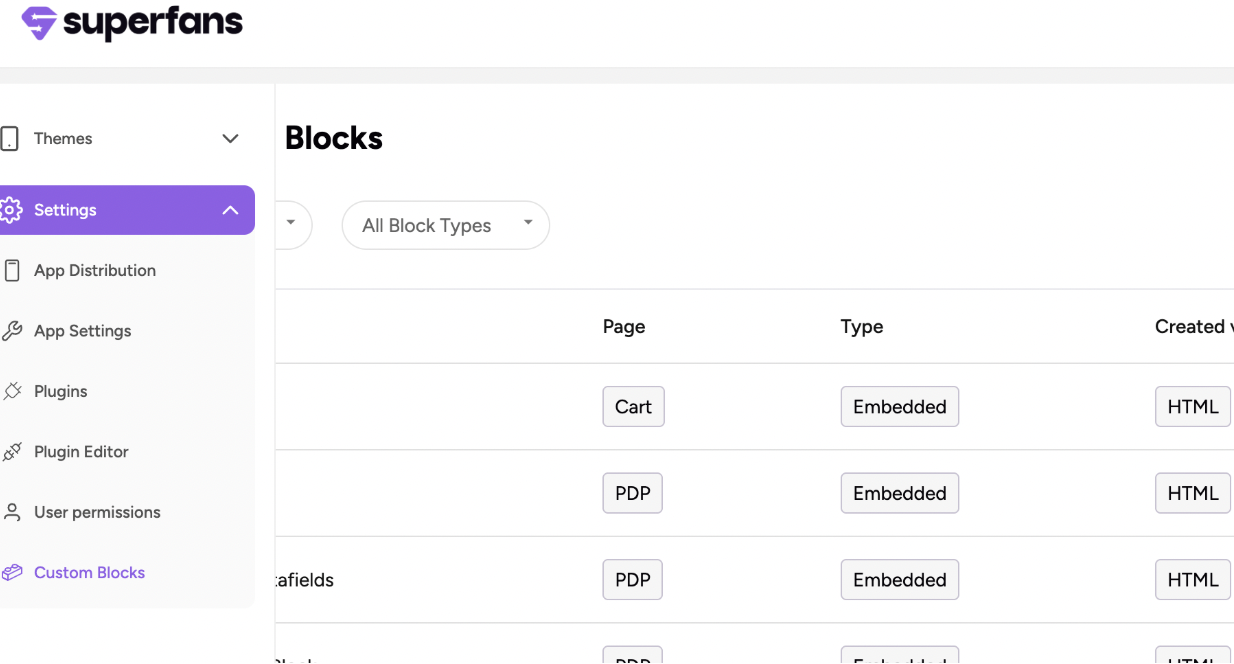
Go to the Blocks section.
-
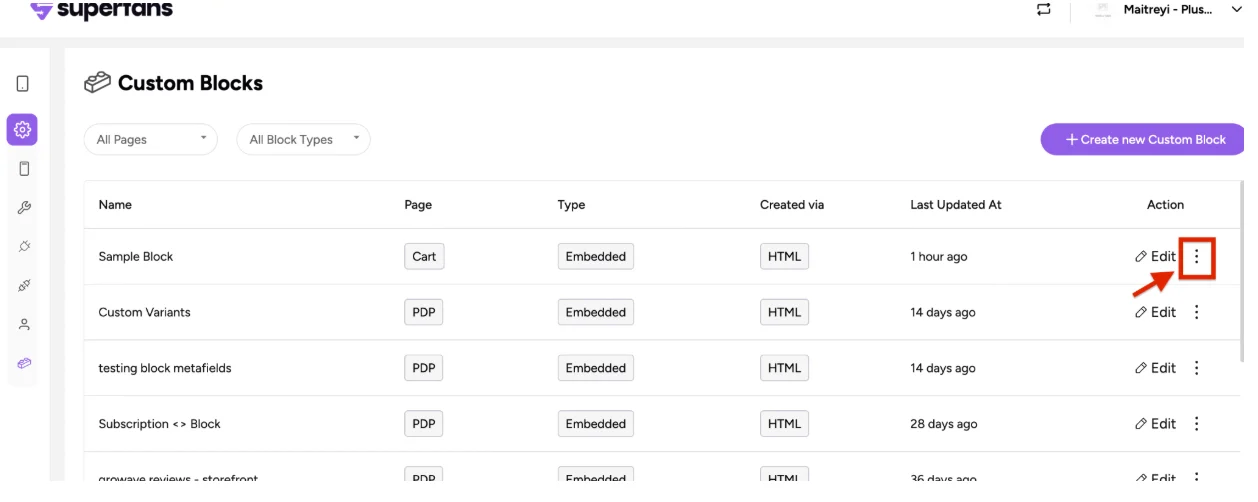
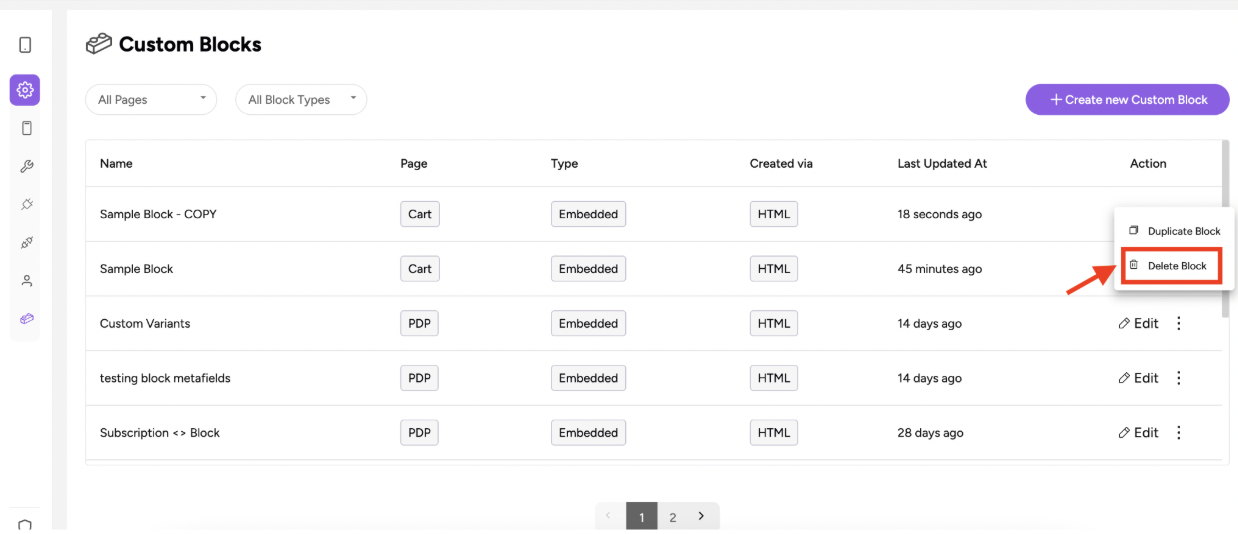
Select the block and click the 3 dots next to Edit.
-
Click the Delete icon.
-
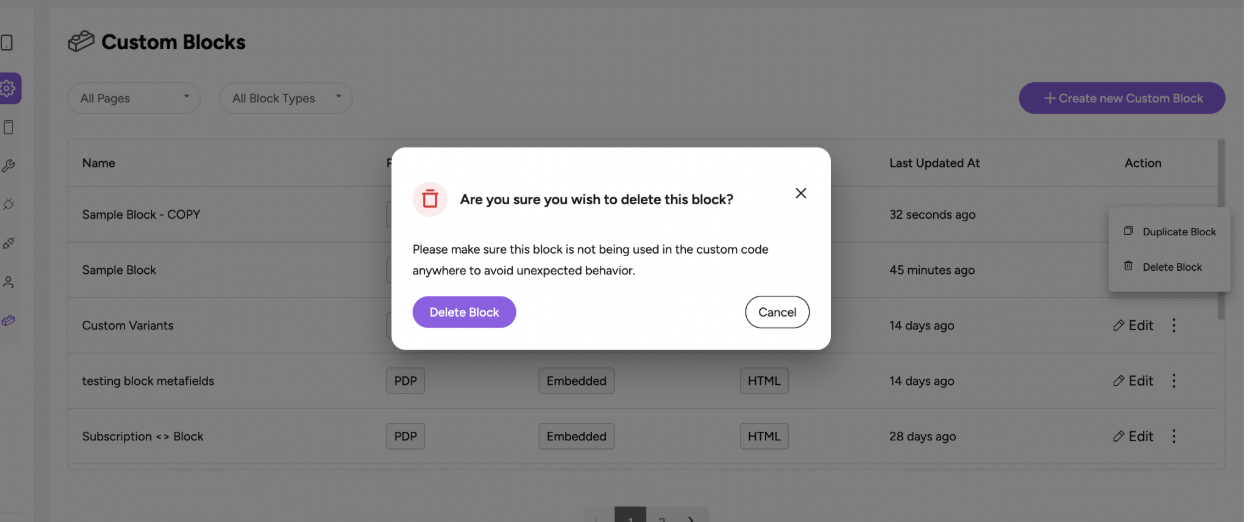
Confirm deletion.
Note:
If the block is active on any page, remove it from that page before deleting.
Duplicating a Block
Duplicating a block helps you reuse layouts without recreating them.
Steps:
-
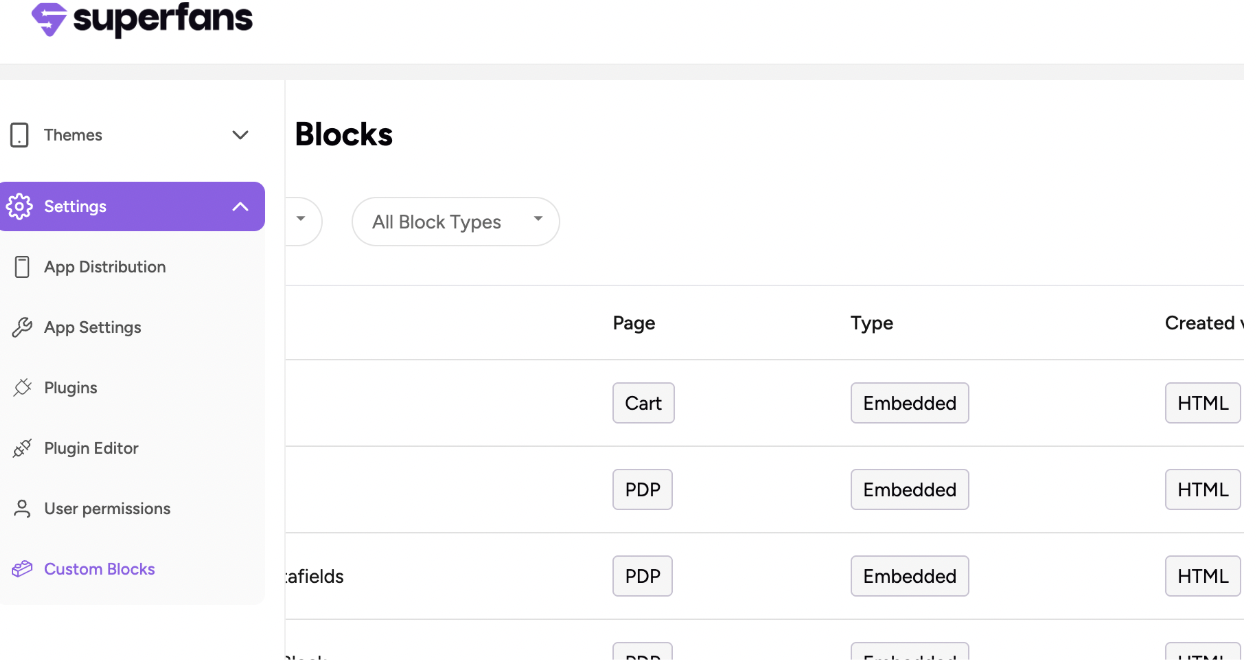
Go to the Blocks section.
-
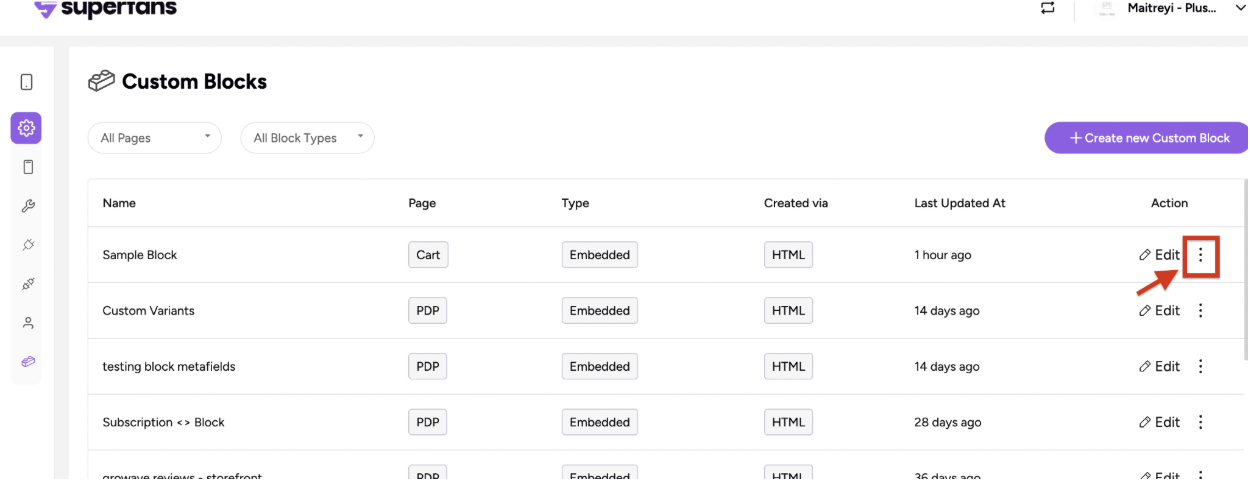
Select the block and click the 3 dots next to Edit.
-
Choose Duplicate. Edit the duplicated version as needed.
Next Steps
Now that you understand how Custom Blocks work, continue to:
👉 Test your custom Blocks →
Learn how to create your first block and add your HTML, CSS, and JS. Test your custom Block
Updated 11 months ago